Fixing a Broken SSH Service on Ubuntu
Step-by-step walkthrough of how I diagnosed and fixed a broken SSH service on Ubuntu.
🛠️ Project Overview
I encountered a scenario where SSH access to a remote Ubuntu server stopped working.
This project walks through the troubleshooting steps I took to identify and fix the issue.
Screenshot showing the
errormessage i got in the CLI.
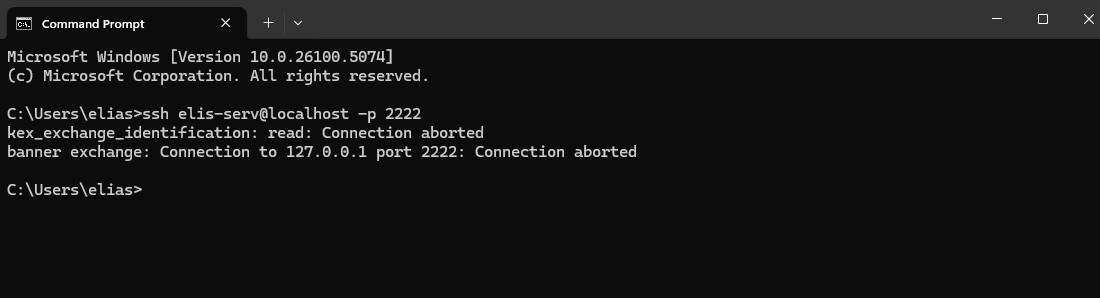 Screenshot from client CLI
🔎 Step 1: Verify SSH Service Status
First, I checked whether the SSH service was running:
1
2
3

sudo systemctl status ssh
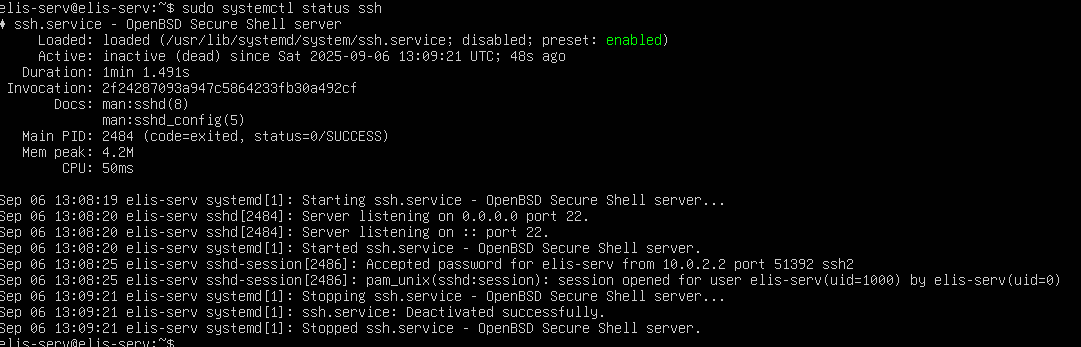 Screenshot from server’s terminal
It showed inactive
(dead), meaning the SSH daemon was not running.
🔎 Step 2: Restart SSH Service
I restarted the SSH service:
1
2
3
4
5

sudo systemctl restart ssh

sudo systemctl enable ssh
Then I confirmed it was running:
1
2
3

sudo systemctl status ssh
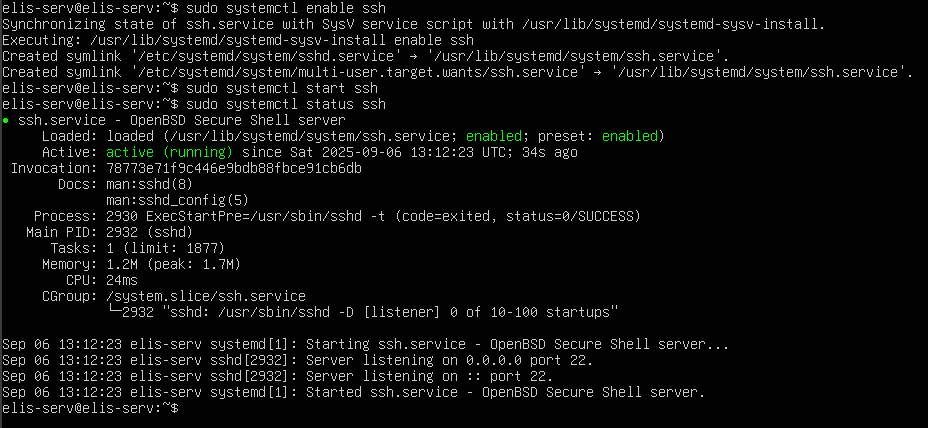 Screenshot from server’s terminal
Now it showed active
(running).
🔎 Step 3: Made sure i had the Forwarding Port rules set up in the VM
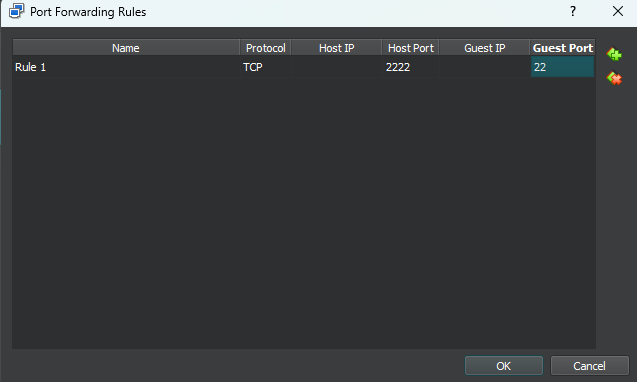 Screenshot from VM Network NAT Advanced settings
I confirmed i had the host port set up for 2222 and guest to 22.
🔎 Step 4: Check Firewall Rules
To make sure port 22 was open, I ran:
1
2
3
4
5

sudo ufw allow ssh

sudo ufw reload
✅ Outcome
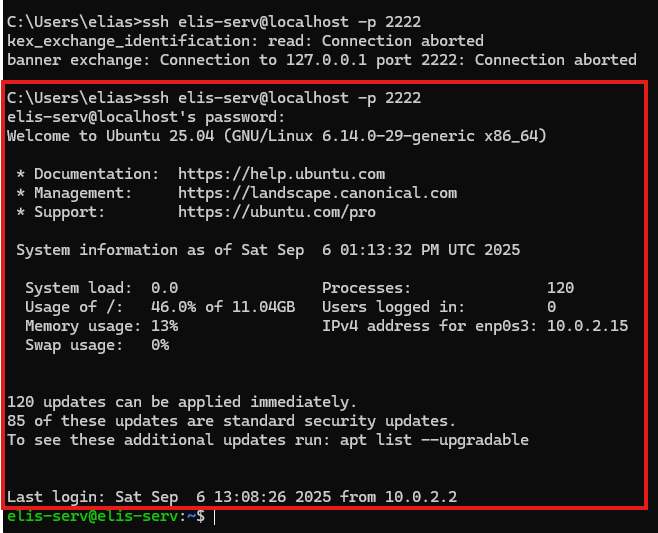 Client CLI side
After completing these steps, SSH access was restored successfully.
I was able to log back in remotely without issues.
Lessons Learned
Always check whether the SSH service is running before making other changes.
Enabling the service on boot prevents future downtime.
Firewall misconfigurations can be a silent cause of access issues: double-check them.