Basic Network Setup Using 2 Linux VMs
Step-by-step walkthrough of how I set up a basic Network using 2 Ubuntu Virtual Machines
Networking Basics Lab 🖧
This project demonstrates a basic networking setup using VirtualBox, Ubuntu Desktop, and Ubuntu Server. It covers VM setup, VirtualBox networking configuration, IP configuration, testing, and troubleshooting.
Lab Topology 🖼️
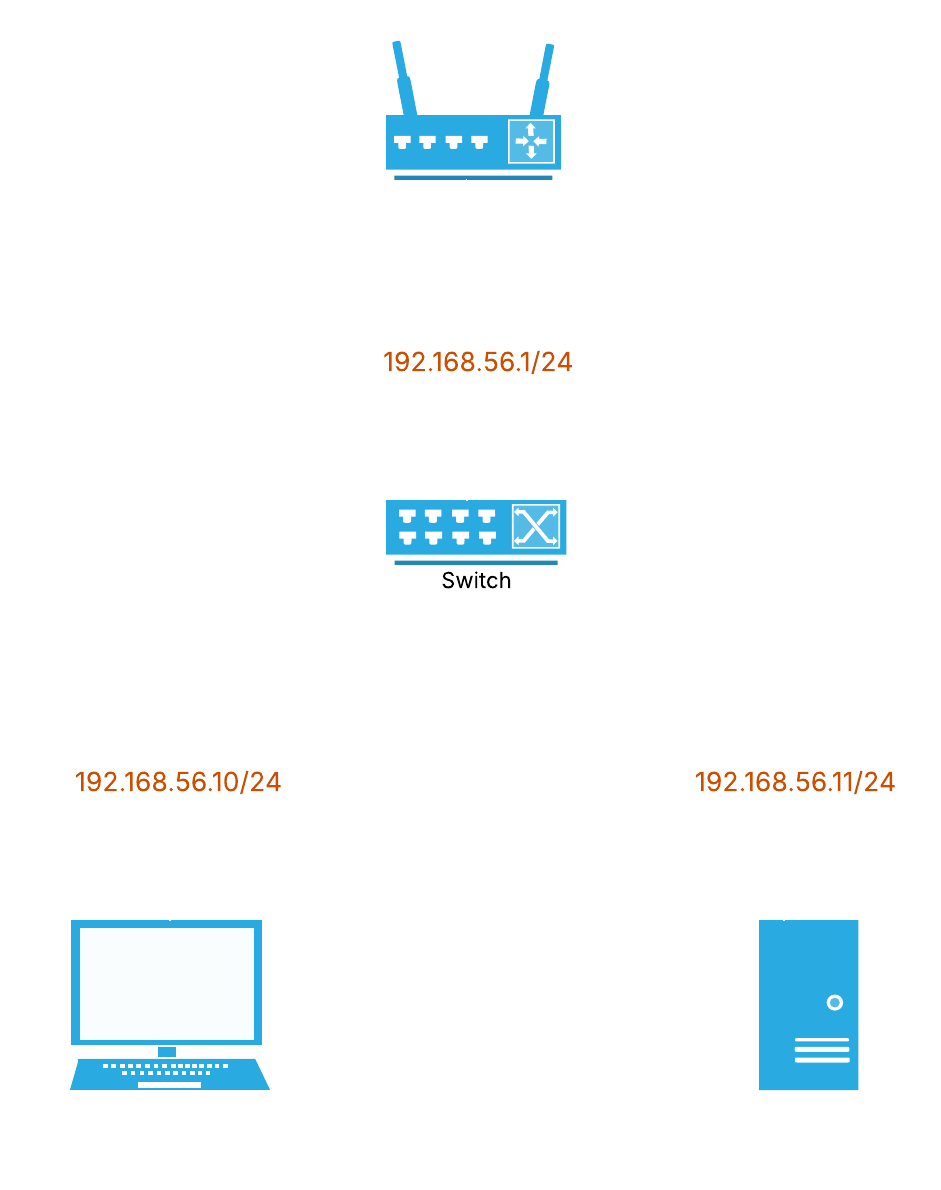
This is a simple flowchart explaining the Network.
1. Lab Setup ⚙️
VirtualBox Network Configuration
Created a Host-Only Adapter in VirtualBox:
IPv4: 192.168.56.1
Netmask: 255.255.255.0
DHCP: Disabled (because we use static IPs)
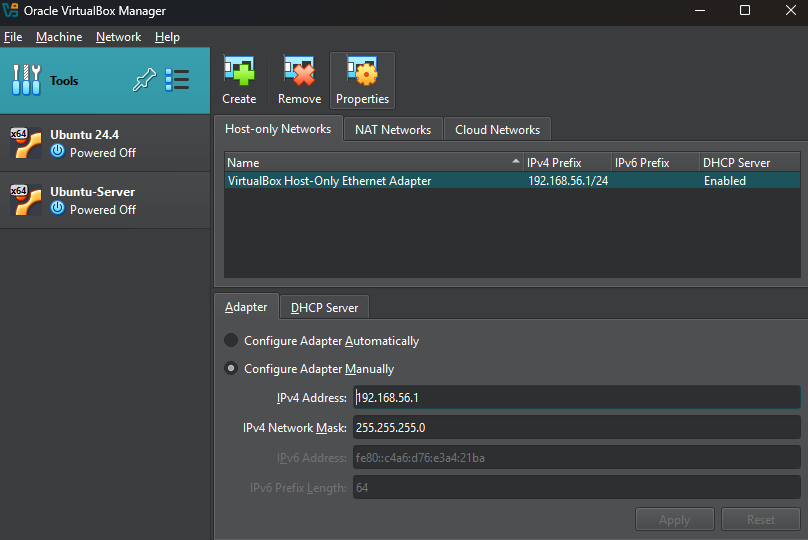
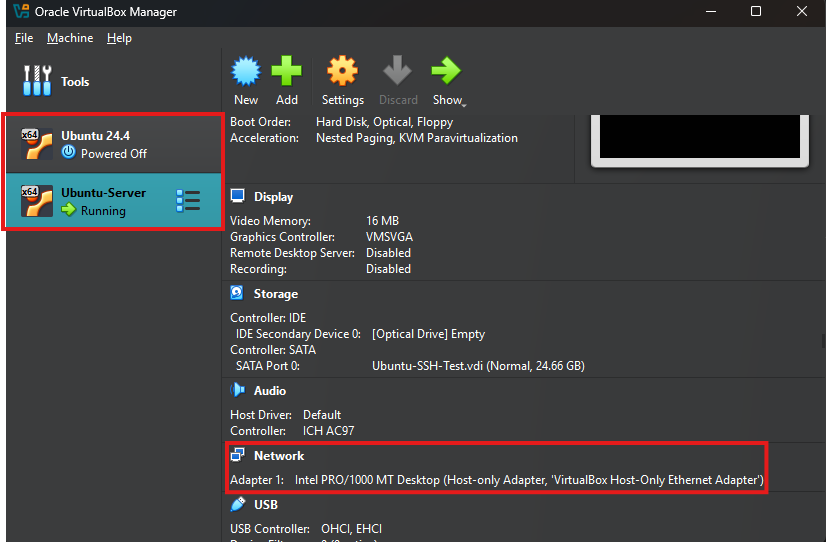
Added two VMs:
Ubuntu Desktop VM
- Adapter 1: Host-Only Adapter
Ubuntu Server VM
- Adapter 1: Host-Only Adapter
2. Network Configuration 🖧
Ubuntu Desktop (192.168.56.10):
1
2
3
4
5
6
7
8
9
10
11
12
13
network:
  version: 2
  renderer: NetworkManager
  ethernets:
    enp0s3:
      dhcp4: no
      addresses:
        - 192.168.56.10/24
      gateway4: 192.168.56.1
      nameservers:
        addresses:
		- 8.8.8.8
		- 8.8.4.4
Here you can see how we edit the Netplan Config in Desktop using
(nano).
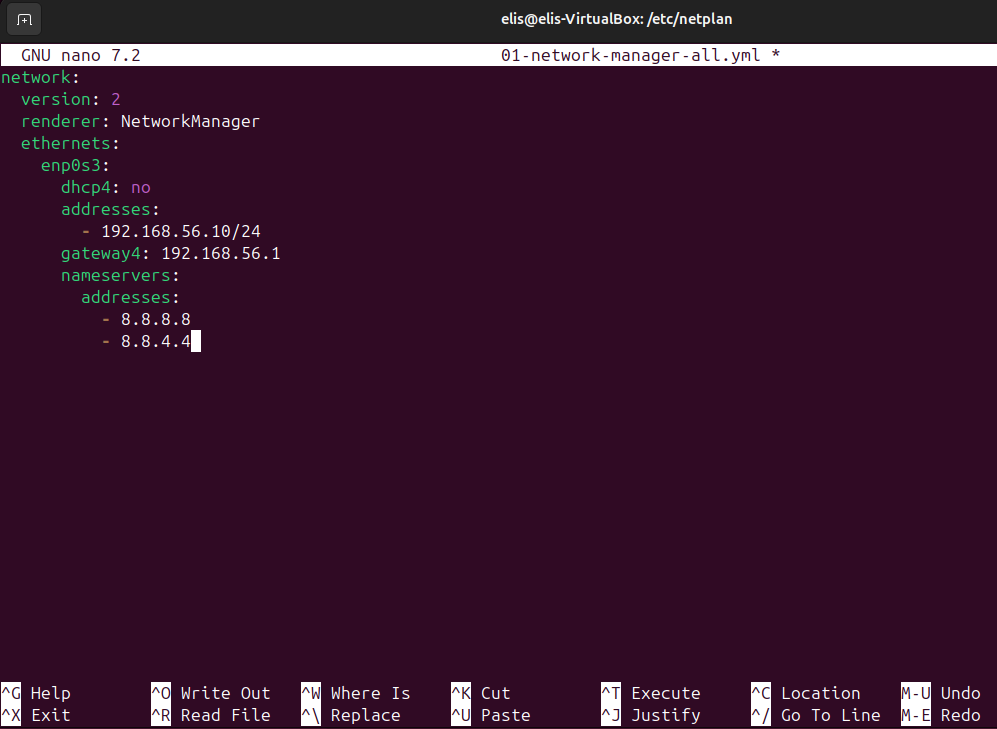 Screenshot from Netplan config being edited with nano
Ubuntu Server (192.168.56.11):
1
2
3
4
5
6
7
8
9
10
11
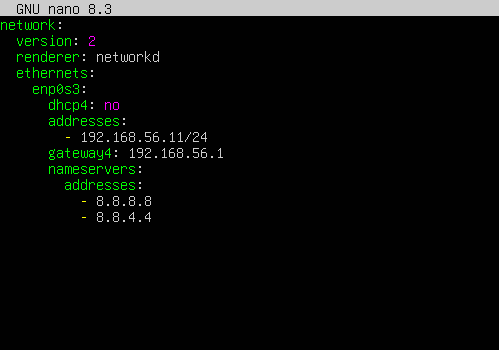
network:
  version: 2
  renderer: networkd
  ethernets:
    enp0s3:
      dhcp4: no
      addresses:
        - 192.168.56.11/24
      gateway4: 192.168.56.1
      nameservers:
        addresses: [8.8.8.8, 8.8.4.4]
Here you can see how we edit the Netplan Config in the server file using
(nano).
Here i applied the netplan and it prompted us with
(Warning).
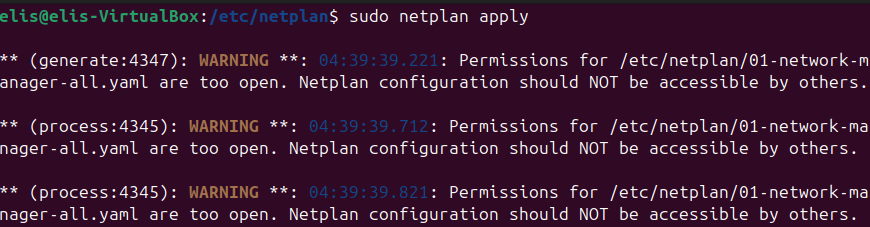 Screenshot from Desktops’s CLI
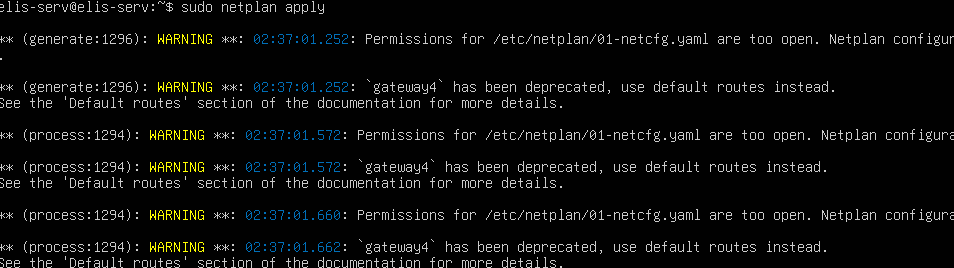 Screenshot from server’s CLI
We fixed it by removing write
(w)permissions from group and others .
 Permission Warning Fix
Testing ✅
Ping from Desktop to Server:
1
2
3

ping 192.168.56.11
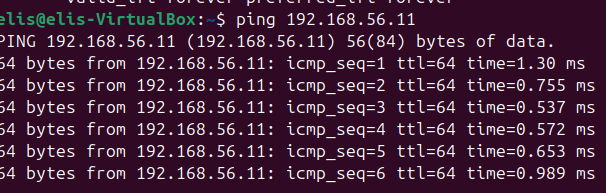 Screenshot from desktop’s Terminal
Ping from Server to Desktop:
1
2
3

ping 192.168.56.10
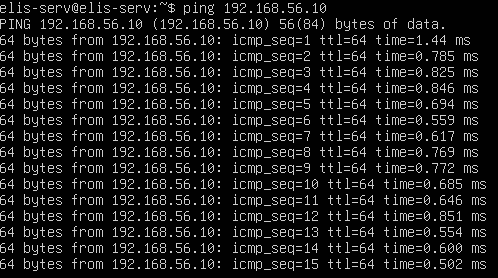 Screenshot from Server
Both pings are successful.
Troubleshooting 🔧
PROBLEM 1
(Issue): No IP address on enp0s3.
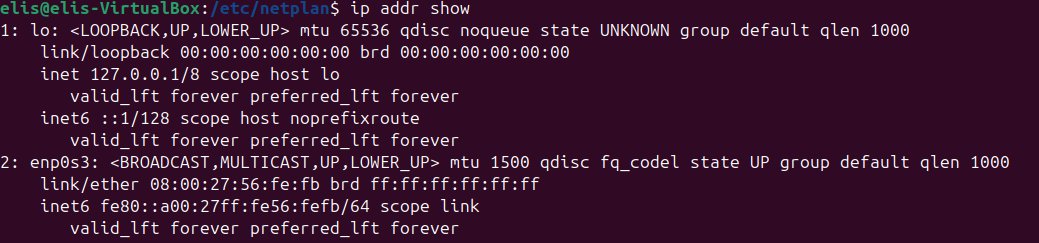 Screenshot from Desktop’s Terminal
(Fix): Configured static IP in Netplan and applied it with sudo netplan apply.
. Screenshot from nano
(Result): Problem fixed.
 Screenshot from nano
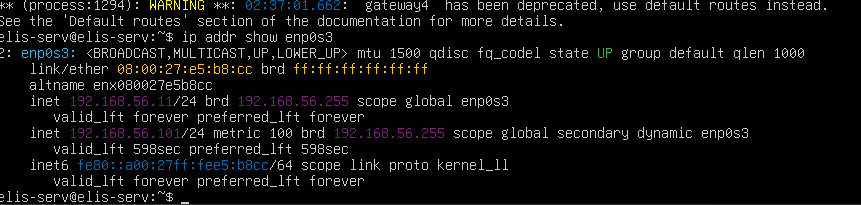
PROBLEM 2
(Issue): Could ping from server to desktop but not the other way

(Fix): Assigned consistent static IPs to both machines to avoid conflicts, turned dchp off. (previously server had .101).
Lessons Learned 📚
How to configure static IPs with Netplan.
How to troubleshoot connectivity using ping and ip addr show.
Importance of consistent network settings in VirtualBox.
Future Work 🔮
Add DHCP server to the lab.
Test routing between multiple networks.
Automate network configuration with Ansible.